Chrome extension · YouTube to NotebookLM
Add YouTube videos, playlists and whole channels to NotebookLM (Gemini Notebook)
NotebookLM takes one YouTube link at a time: paste, wait, paste again. A 40-lecture playlist is 40 of those. source-lm puts an Add to notebook button on the video, the playlist, and the channel page, so the whole thing goes in with one click — each video as its own source.
No backend of ours, no third-party server: requests go to the notebook's own origin, Google's upload host, and the payment provider's licence endpoint — nothing else. Source-available and shipped unminified — read the code.
Four buttons, inside YouTube.
No popup, no copying URLs. The buttons sit in YouTube's own action rows and open a small dialog to pick a notebook — or create one.
See what a channel run looks like end to end: a real run.
Watch page, actions row
Add to notebook adds the current video
Sits next to Share and Save. One video, one source — free and unmetered.
Watch page, playlist panel
Add to Notebook adds every video rendered in the panel
The panel loads lazily, so scroll it to the bottom first. The dialog tells you how many it found, and if the playlist is longer than what has loaded, it says so.
Playlist page, header
Add to notebook adds every video loaded on the page
Same rule: what has rendered is what gets collected. A 40-lecture course is one click once the page has loaded it.
Channel page, header
Add to notebook adds the newest videos — 50 by default, you set the number
Walks the Videos tab for you, loading more as it goes, and stops at your number or when the channel runs out. The button shows the count while it works.
The dialog
Every button opens the same in-page dialog: a Notebook dropdown listing your notebooks plus “New notebook”, the count it is about to add, and — on a channel page — the “Add latest N videos” field. Click Add and the videos appear in the notebook's Sources panel.
Before the first click
Open NotebookLM once after installing. The dialog's notebook list is a cache written by your open notebook tab — a YouTube page cannot reach NotebookLM on its own. Until you have visited it, the dropdown is empty and the dialog says: “Open Gemini Notebook once so the extension can see your notebooks”.
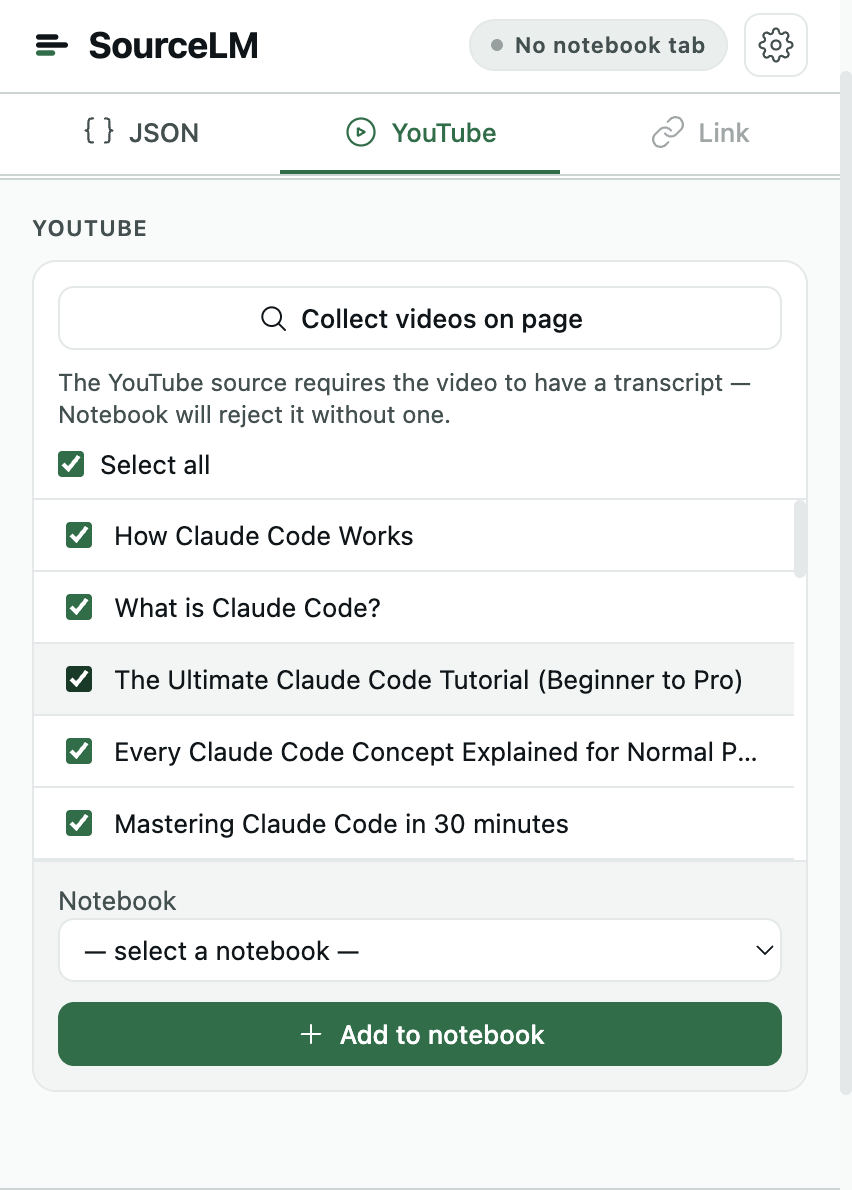
If YouTube changes its markup and a button does not show up, the popup still works: open it on any YouTube page, click “Collect videos on page”, tick the ones you want, pick a notebook, add. Same result, two more clicks — the popup pictured at the top of this page.
What counts as one bulk action
The free tier meters clicks, not videos. One click that adds more than one video is one bulk action, however many videos it brings in.
- Bulk actions per calendar month — a playlist, a channel harvest, more than one video from the popup, or a bulk JSON upload; one pool for all of them
- 5
- One video at a time, from the watch page or the popup
- free, unmetered
- Resets
- 1st of the month
- Unlimited bulk actions, no recurring charge
- $29, once
Every video is one source.
That is how NotebookLM counts them, and source-lm does not change it. A notebook's source cap is the real ceiling on a channel import.
Sources per notebook
- Standard (free)
- 50
- Google AI Plus
- 100
- Google AI Pro
- 300
- Google AI Ultra
- 500 / 600
Google's own numbers, checked 2026-08-21 — Ultra is 500 on the 20 TB plan and 600 on the 30 TB plan. Source: Upgrade Gemini Notebook.
What helps
- The channel button's “Add latest N videos” field — take the newest 50, not the back catalogue.
- One notebook per course, per season, per conference. A 100-notebook allowance on the free tier goes a long way.
- Google's paid tiers, if you genuinely need 300 videos in one place.
source-lm does not merge transcripts into fewer, fuller sources. The word-budget packing is for JSON exports only — see the limits guide. Students: the same applies to a semester of lecture playlists — how students use it.
What YouTube videos NotebookLM accepts
- Public videos only — private videos are not supported.
- Videos with captions, user-uploaded or auto-generated; only the transcript is imported, so a video without speech is unsupported.
- Videos uploaded less than 72 hours ago may not import yet — retry later.
Checked 2026-08-21 — Add or discover new sources.
01Can you add YouTube videos to NotebookLM?
Yes. NotebookLM accepts public YouTube URLs as sources and imports the video’s transcript. Natively you paste one link at a time; source-lm adds buttons inside YouTube that send the current video, a whole playlist, or a channel’s newest videos in one click.
02How do I add YouTube videos to NotebookLM?
Without an extension: open the notebook, choose Add source, paste the video URL, repeat per video. With source-lm: open the video, playlist, or channel on YouTube, click Add to notebook, pick a notebook in the dialog, click Add. The videos land as sources in that notebook.
03Can NotebookLM transcribe or summarise a YouTube video?
It imports the video’s captions — user-uploaded or auto-generated — as the source text, so a video without captions is unsupported. Once the transcript is in, the notebook summarises, answers questions, and builds Audio Overviews, study guides, and mind maps from it like any other source.
04Can you upload audio to NotebookLM?
Yes, natively: MP3, WAV, M4A, OGG, and other audio formats go in as sources and are transcribed, up to 500,000 words or 200 MB each. source-lm does not upload audio files; it handles YouTube links, JSON exports, and web pages.
05How do I get a whole YouTube playlist or channel into NotebookLM?
On the playlist page, scroll until every video has loaded, then click Add to notebook. On a channel, click Add to notebook in the header, set how many of the newest videos you want (default 50), and the extension walks the Videos tab for you. Either way, each video becomes its own source, and a click that adds more than one video counts as one bulk action.
06Does NotebookLM have a Chrome extension?
Not an official one — as of August 2026 Google’s help centre covers the web app and the Android and iOS apps only. Third-party extensions exist; source-lm is one of them, unofficial, with no backend of its own. How the extensions compare.
07What happens when I re-run a playlist import?
Videos already in the notebook are skipped — the extension reads the notebook’s source list first and matches on video id, and the result toast reports them as skipped. Each video stays its own source; transcripts are never merged. For a lecture or two that arrived during the term, add them singly from the watch page instead — single videos are free.
Whole playlist in, one click.
Install source-lm5 bulk actions a month, free. One video at a time, always free.